Change Password
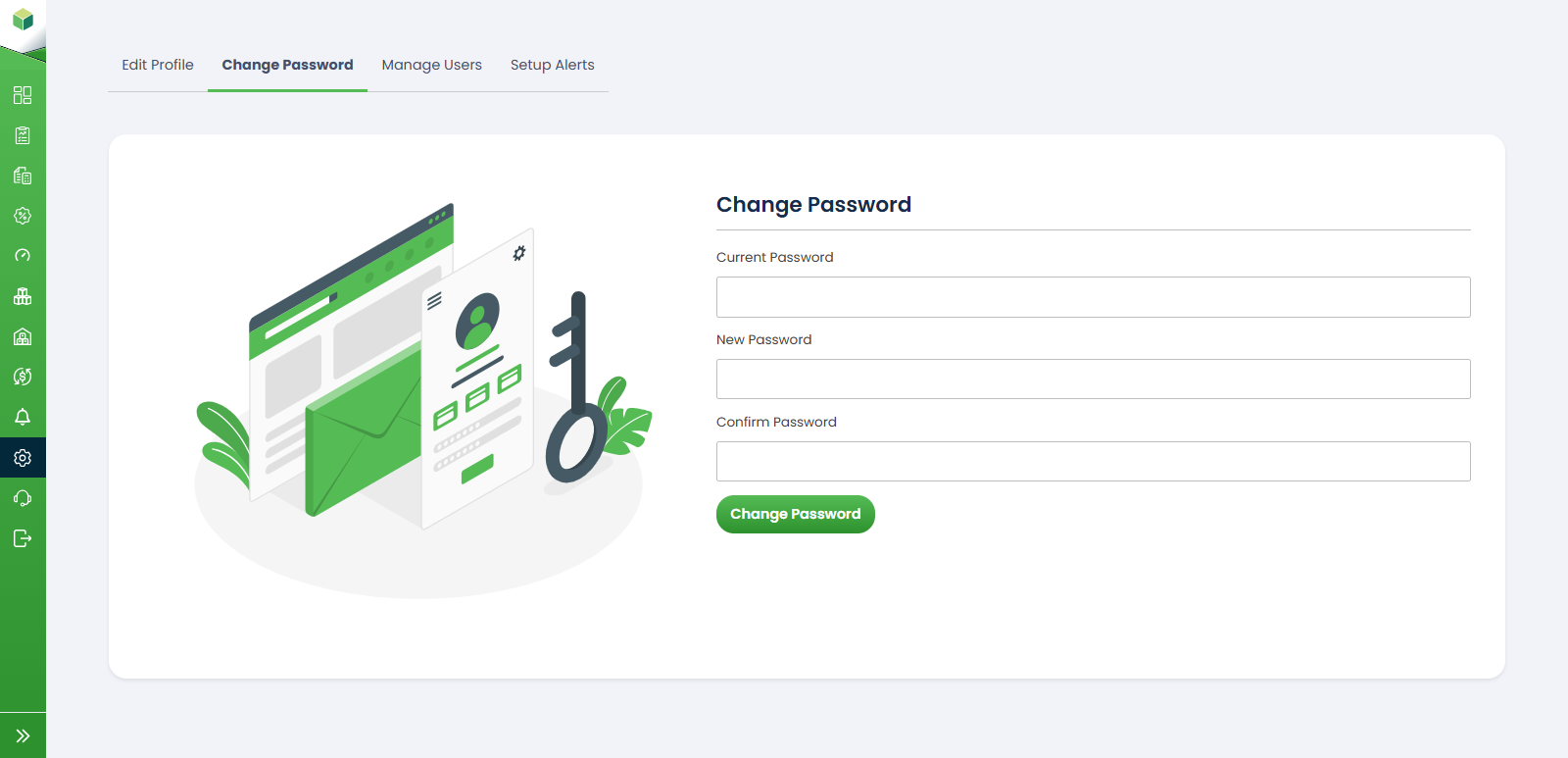
To access this section, follow these steps:
- Log in to your account.
- Navigate to the sidebar on the left-hand side of the dashboard.
- Click on Settings.
- Select the " Change Password " tab.
The Change Password section allows users to update their account password to maintain account security and protect access to the platform.
1. Current Password: Enter your existing account password in the Current Password field. This is required to verify your identity before changing the password.
2. New Password: Enter the new password you would like to use for your account. It is recommended to choose a strong password containing a combination of letters, numbers, and special characters.
3. Confirm Password: Re-enter the new password in the Confirm Password field to ensure it matches the password entered in the New Password field.
After completing all required fields, click the Change Password button to update your account password. If the entered information is valid, the system will successfully update your password and apply the changes to your account.