Manage Users
To access this section, follow these steps:
- Log in to your account.
- Navigate to the sidebar on the left-hand side of the dashboard.
- Click on Settings.
- Select the "Manage Users" tab.
The Manage Users section allows administrators to create new users, assign brands and countries, configure module permissions, and manage access across the Brand Central platform.
1. Account Access: The Account Access table displays all users associated with the account and their assigned access details.
The table includes:
- Email – Registered email address of the user.
- Full Name – Name of the user.
- Company – Associated company name.
- User Role – Role assigned to the user.
- Assigned Brands – Brands accessible to the user.
- Assigned Tabs – Platform modules available to the user.
2.Delete User: Click the Delete icon to remove a user from the account.Once deleted, the user will no longer be able to access the Brand Central platform.

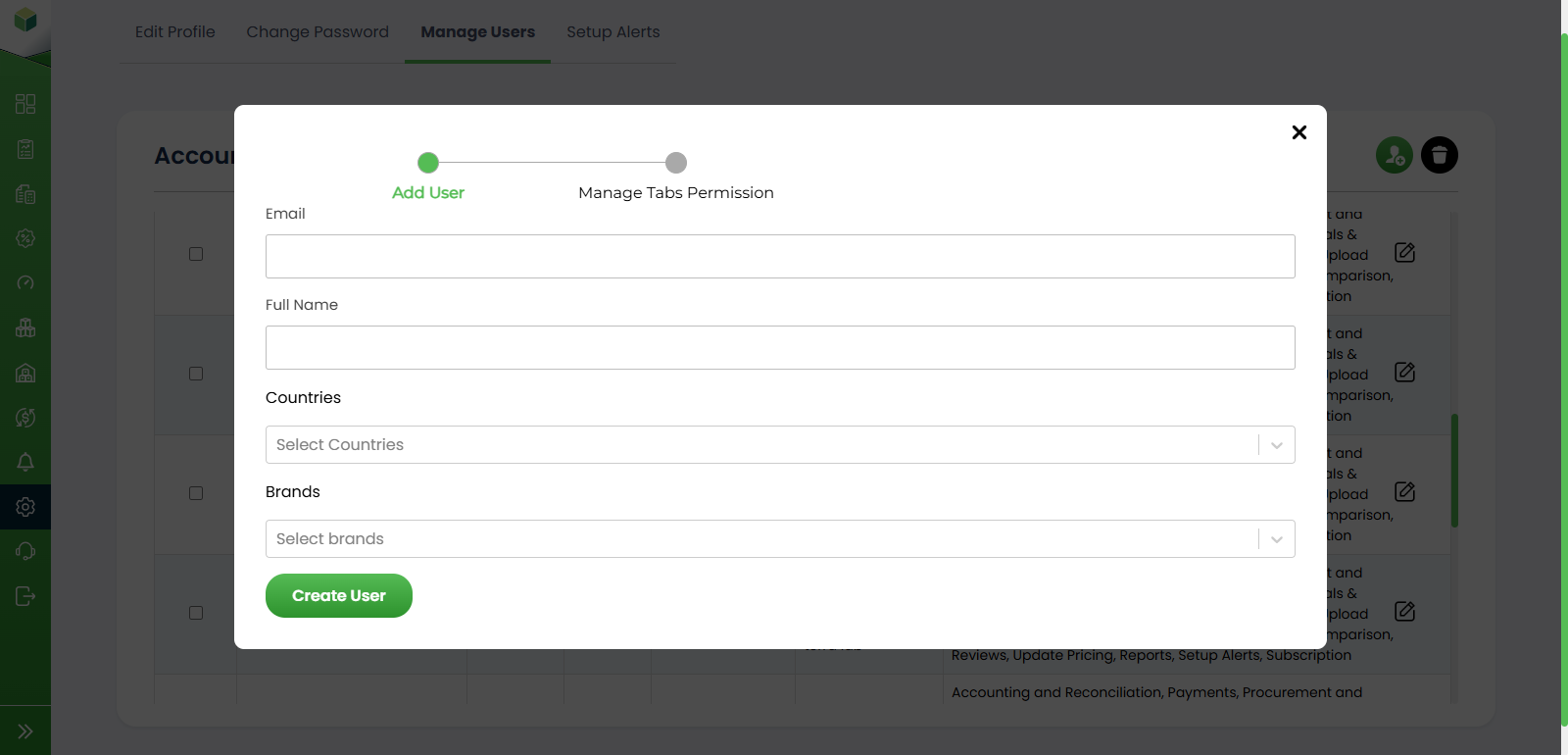
2. Add User: Click the Add User icon to create a new user account. This opens the Add User window where administrators can enter:
- Email – User's email address.
- Full Name – User's full name.
- Countries – Countries the user can access.
- Brands – Brands assigned to the user.
After entering the required details, click Create User to add the user to the platform.
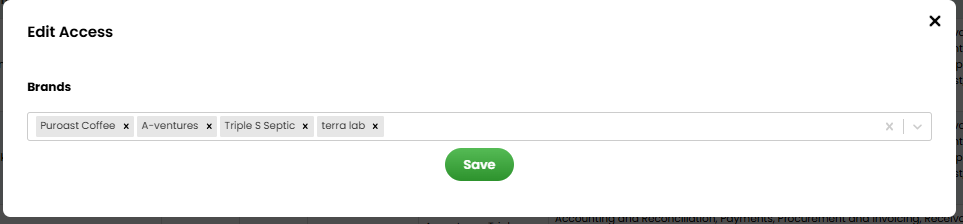
3.Manage Brand Access: Administrators can assign one or more brands to a user through the Edit Access window.
Select the brands that the user should be able to access and click Save. The user will only be able to view data related to the assigned brands.
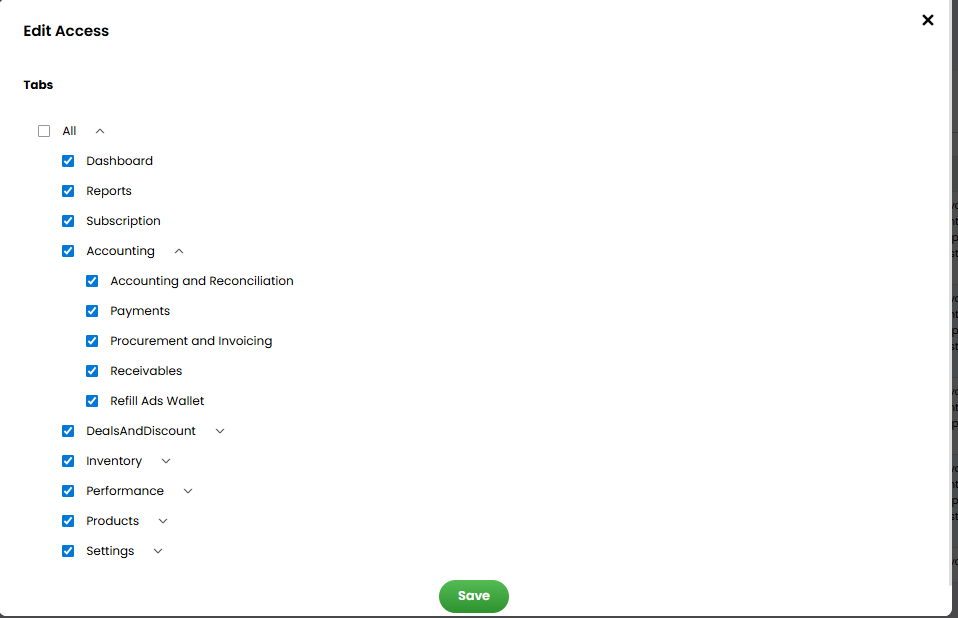
4.Manage Tabs Permission: After creating a user, administrators can configure tab-level access permissions. The Manage Tabs Permission screen allows administrators to grant or restrict access to specific modules, Select the required modules and click Save to apply the permissions.