
Upload History
To access this section, follow these steps:
- Log in to your account.
- Navigate to the sidebar on the left-hand side of the dashboard.
- Click on Inventory.
- Select the "Upload History" tab.
The Upload History section allows users to track and monitor previously submitted inventory procurement files. Users can review uploaded files, check their processing status, and view any comments or updates related to the submission.
1. Selecting Country
In the upper-right corner of the page, users can select their preferred country or region from the dropdown menu. The displayed upload history records will correspond to the selected country.
2. Status Filter
The Status dropdown allows users to filter uploaded procurement files based on their current processing status, such as Under Review, Approved, Rejected, or other available statuses.
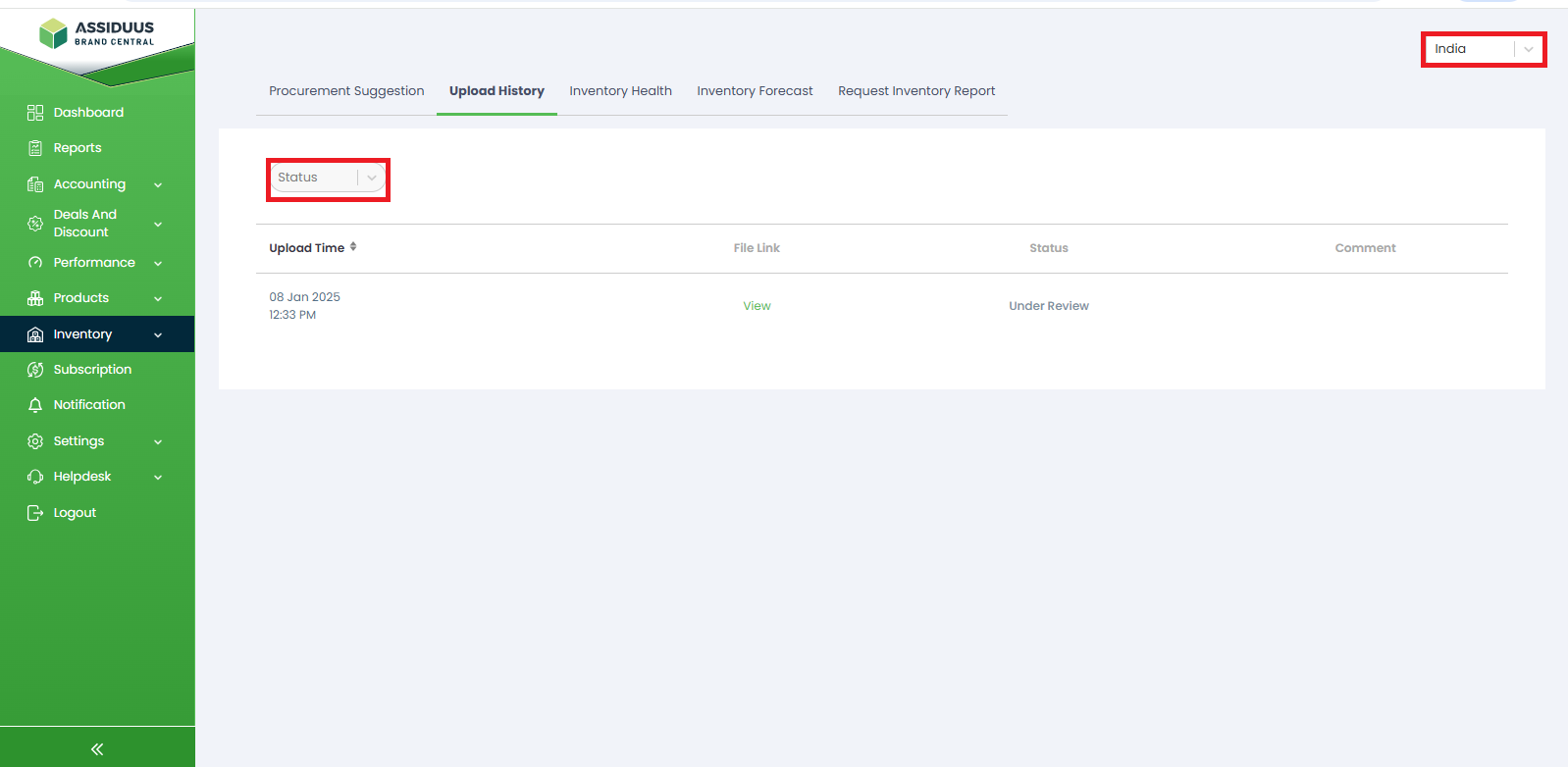
Upload Time: The Upload Time column displays the date and time when the procurement file was submitted.
File Link: The File Link column provides access to the uploaded procurement file. Clicking View allows users to open and review the submitted file.
Status: The Status column shows the current processing stage of the uploaded procurement request. This helps users track the progress of their submission.
Comment: The Comment column displays any remarks, feedback, or observations provided by the reviewing team regarding the uploaded procurement request.