
Subscription
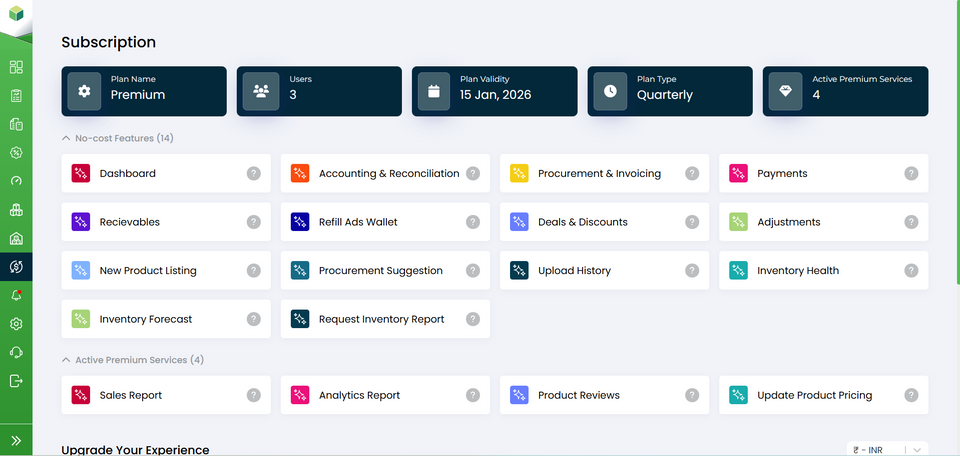
Subscription:
Here, you can view your current subscription, explore premium features, upgrade your access, and complete payments securely. This guide will walk you through the entire process—from selecting features to completing checkout and viewing your updated plan details.
Accessing the Subscription Section
- Log in to your account.
- Navigate to the sidebar on the left-hand side.
- Look for the “Subscription” tab.
- Click on the “Subscription” tab.
- You will now enter the Subscription section, where you can upgrade your dashboard access .
Selecting Features to Upgrade
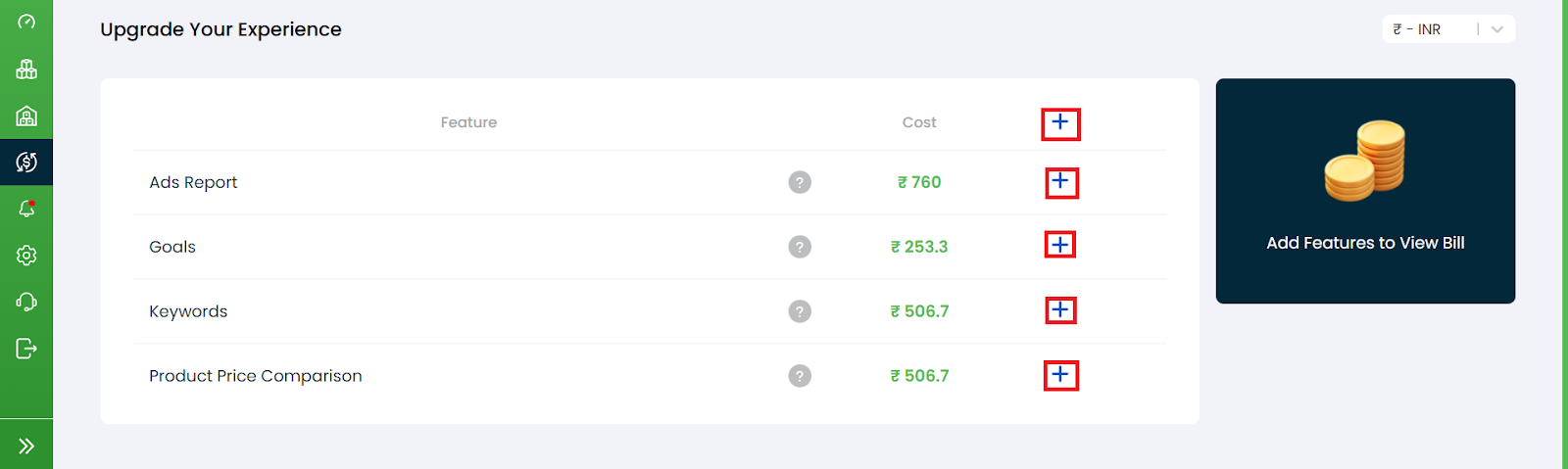
- Scroll down to the Upgrade Your Experience section.
- You will see a list of premium features displayed along with:
- Feature Name
- Cost
- A “+” icon for adding the feature
- Review each feature and click on the “+” icon to add it to your purchase.
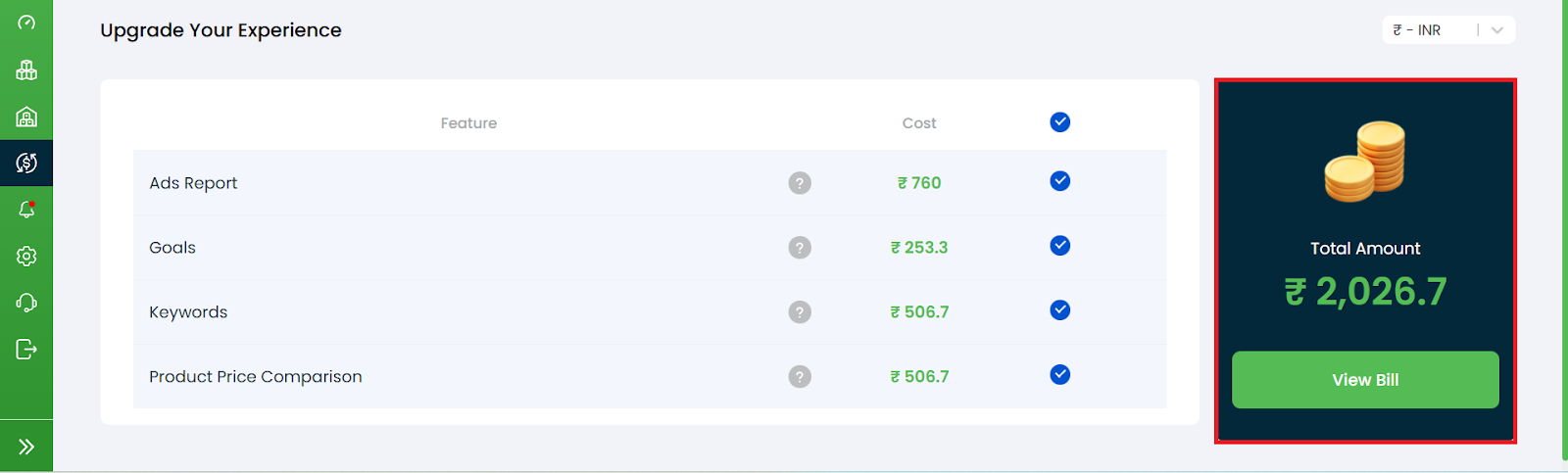
- As features are added, the Total Amount on the right-side panel will update automatically.
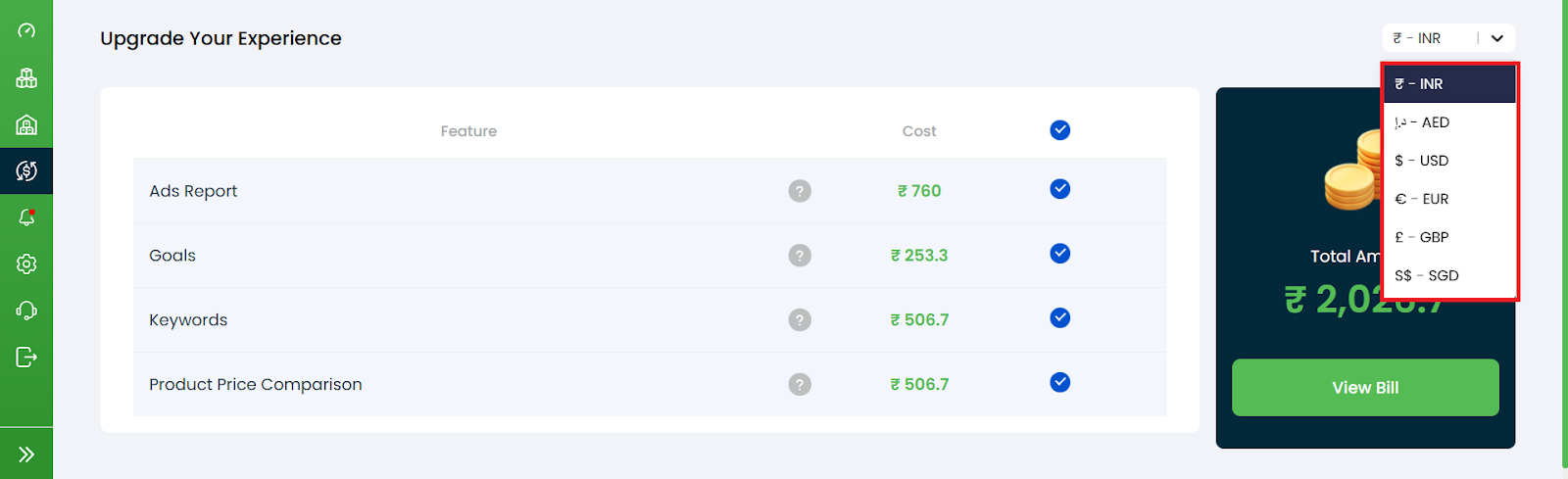
- Use the Currency dropdown (INR/USD/EUR/GBP/SGD) to view pricing in your preferred currency.
Reviewing the Bill
- After selecting your desired features, click on View Bill in the right panel.
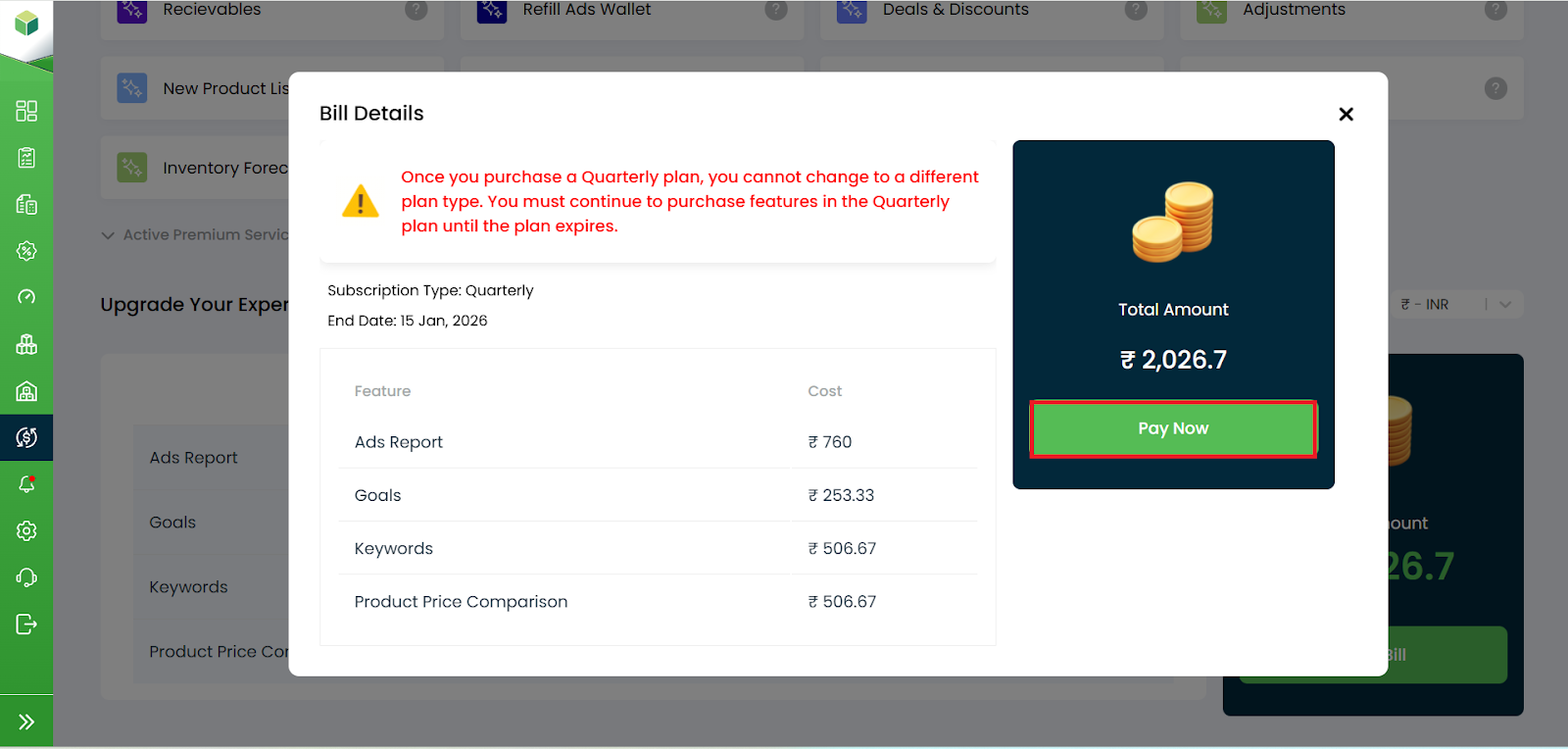
- A Bill Details popup will appear displaying:
- Your subscription type i.e. quarterly, monthly or yearly.
- Plan end date
- List of selected features with individual prices
- Total amount
- If everything looks correct, click Pay Now.
Choosing a Payment Method
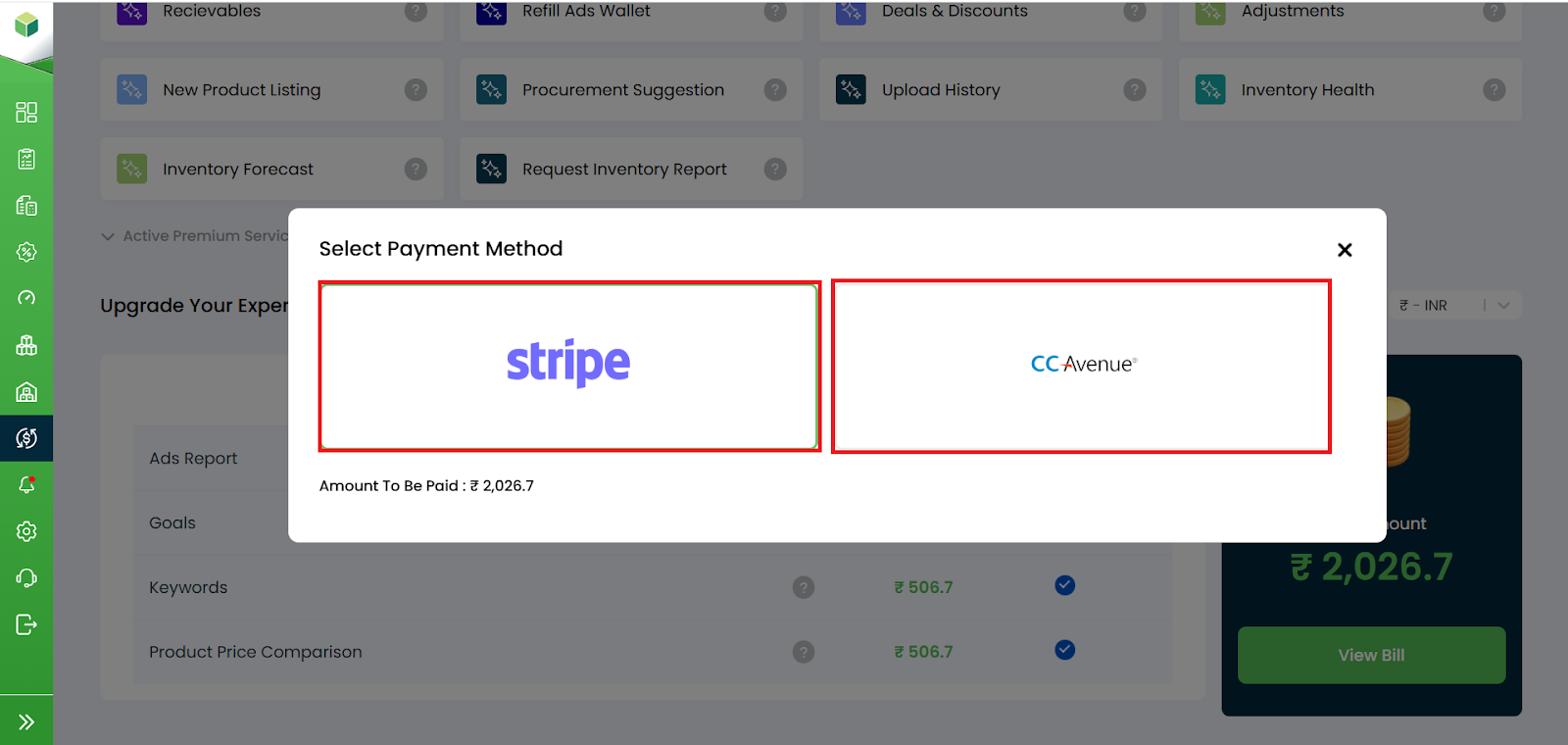
- After selecting pay now, a payment method popup appears.
- Choose your preferred option:
- Stripe
- CCAvenue
- The payable amount will be shown at the bottom.
- Click on the payment gateway you want to use to continue.
Completing the Payment (Stripe Example)
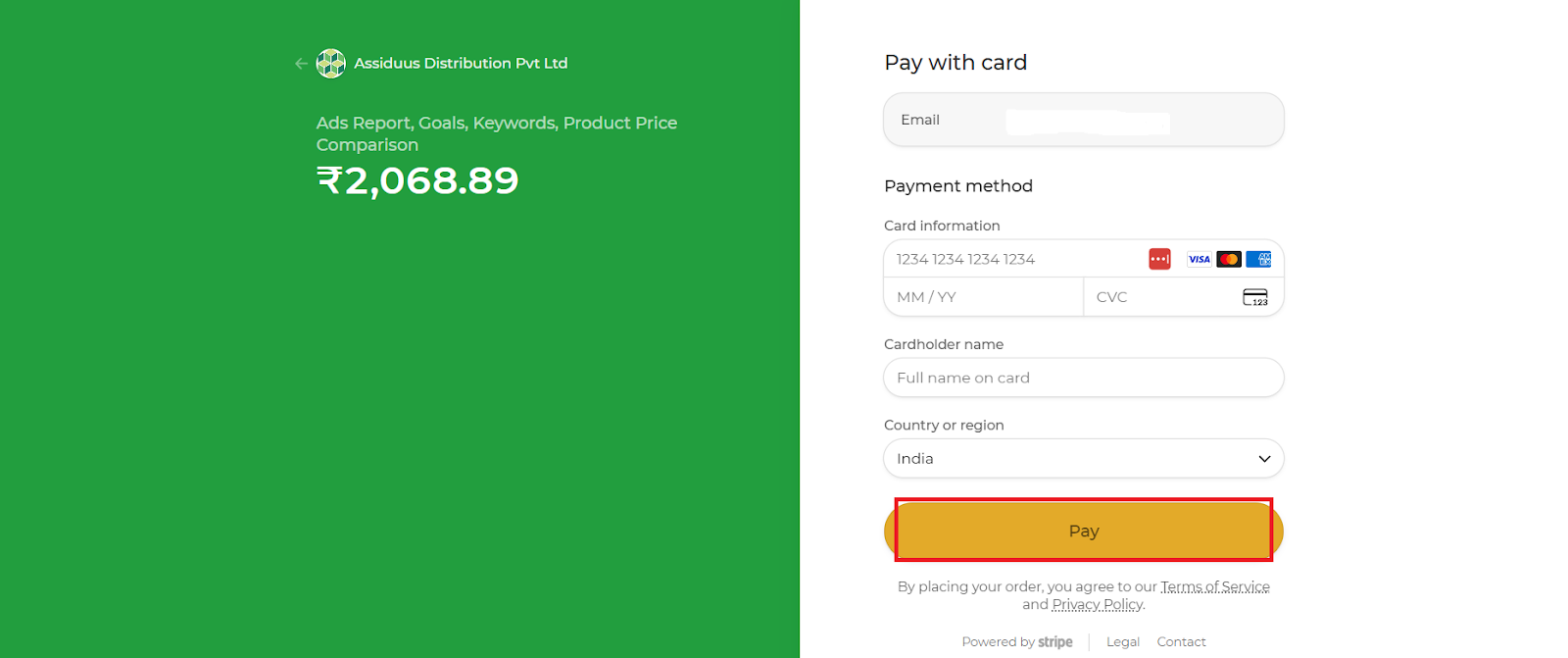
Once redirected to the secure payment page:
- Contact Information: enter your email address for payment notifications and receipts.
- Card Information: card number, expiry date, cvc.
- Name on Cardholder: enter the full name of card holder
- Billing Details: select your country/region
- Final confirmation
- You can read Terms of Service and Privacy Policy.
- Review the Total Amount and card details.
- Click Pay to complete the transaction.
Reviewing Your Subscription After Payment
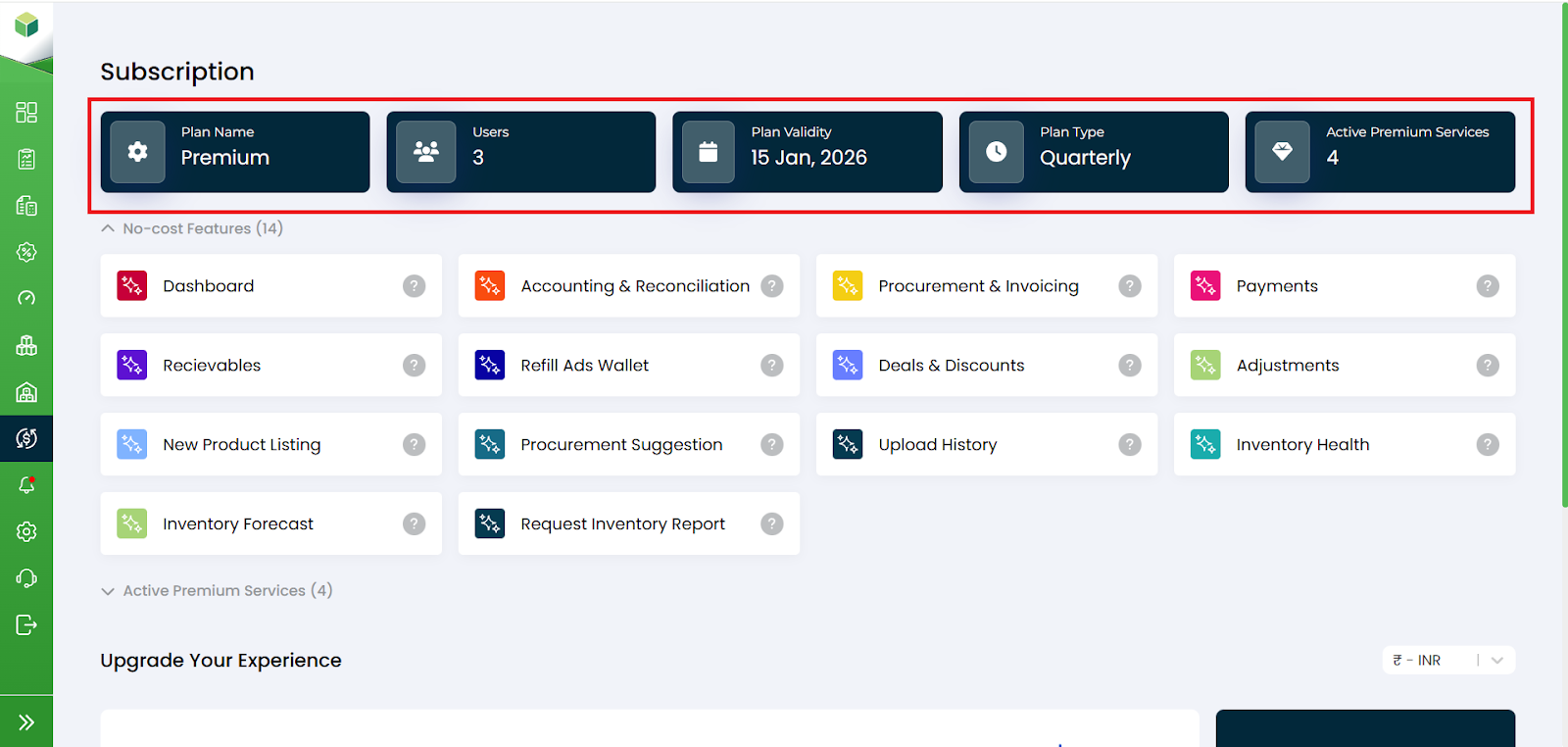
After completing the payment, return to the Subscription page. You can now review all updated details, including:
- Plan Name: Shows the active plan.
- Users: Indicates how many users are part of your subscription.
- Plan Validity: Displays the last date your subscription is valid.
- Subscription Type: Shows whether your plan is monthly, quarterly, or yearly.
- Active Premium Services: Shows how many premium services are currently active under your plan.
Free Features vs Active Premium Services
Your Subscription page is divided into two sections:
Free/No-cost Features: These features are included with your plan at no extra cost. These features do not require additional payment.
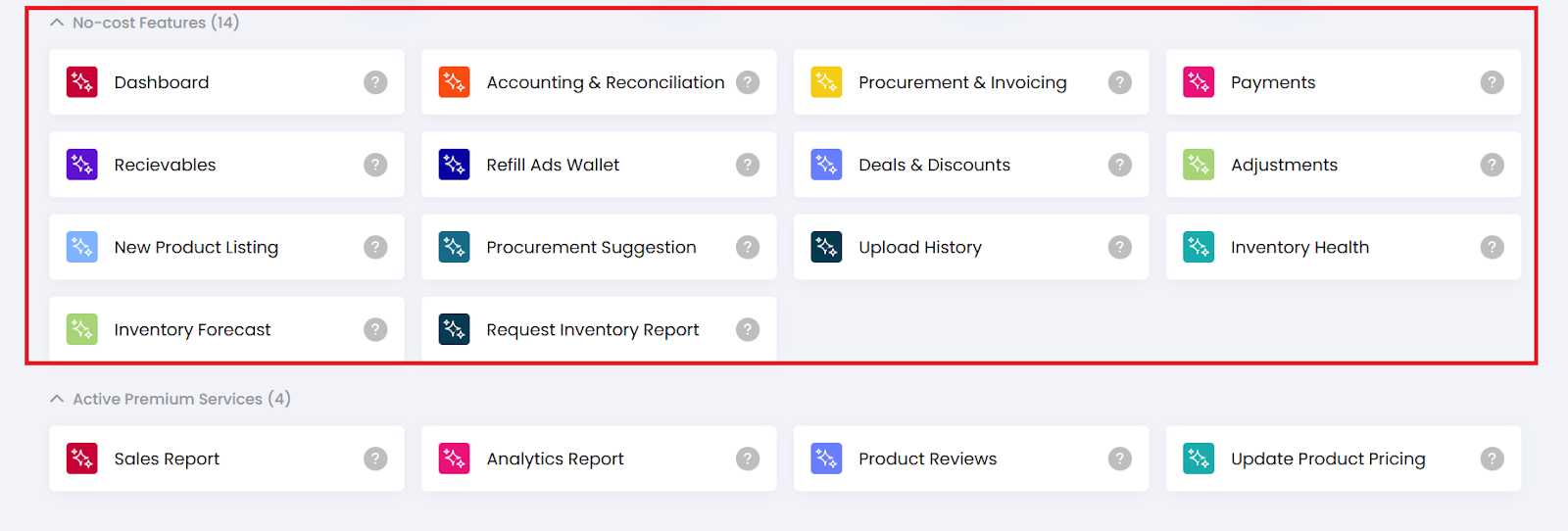
Active Premium Services: This section shows all the premium services that you have purchased and are currently active in your subscription. These services have been unlocked based on the features you purchased during checkout.
