
New Product Listing
To access this section, follow these steps:
- Log in to your account.
- Navigate to the sidebar on the left-hand side of the dashboard.
- Click on Products.
- Select the " New Product Listing " tab.
The New Product Listing section allows users to submit new products or SKUs for marketplace listing. Users can download the product template, fill in the required product details, upload the completed file, and track the status of their submissions.
1. Selecting Country: In the upper-right corner of the page, users can select their preferred country or region from the dropdown menu. The product listing requests and data displayed will correspond to the selected country.
2.Product Sample Sheet: Click the Products Sample Sheet button to download the standard product listing template. The template contains the required fields and format for submitting new products or SKUs.
3. Upload Products File: After completing the template, click Choose File to upload the product listing file.
4. Status Filter: The Status dropdown allows users to filter product listing submissions based on their current status, such as Under Review, Approved, Rejected, or other available statuses.
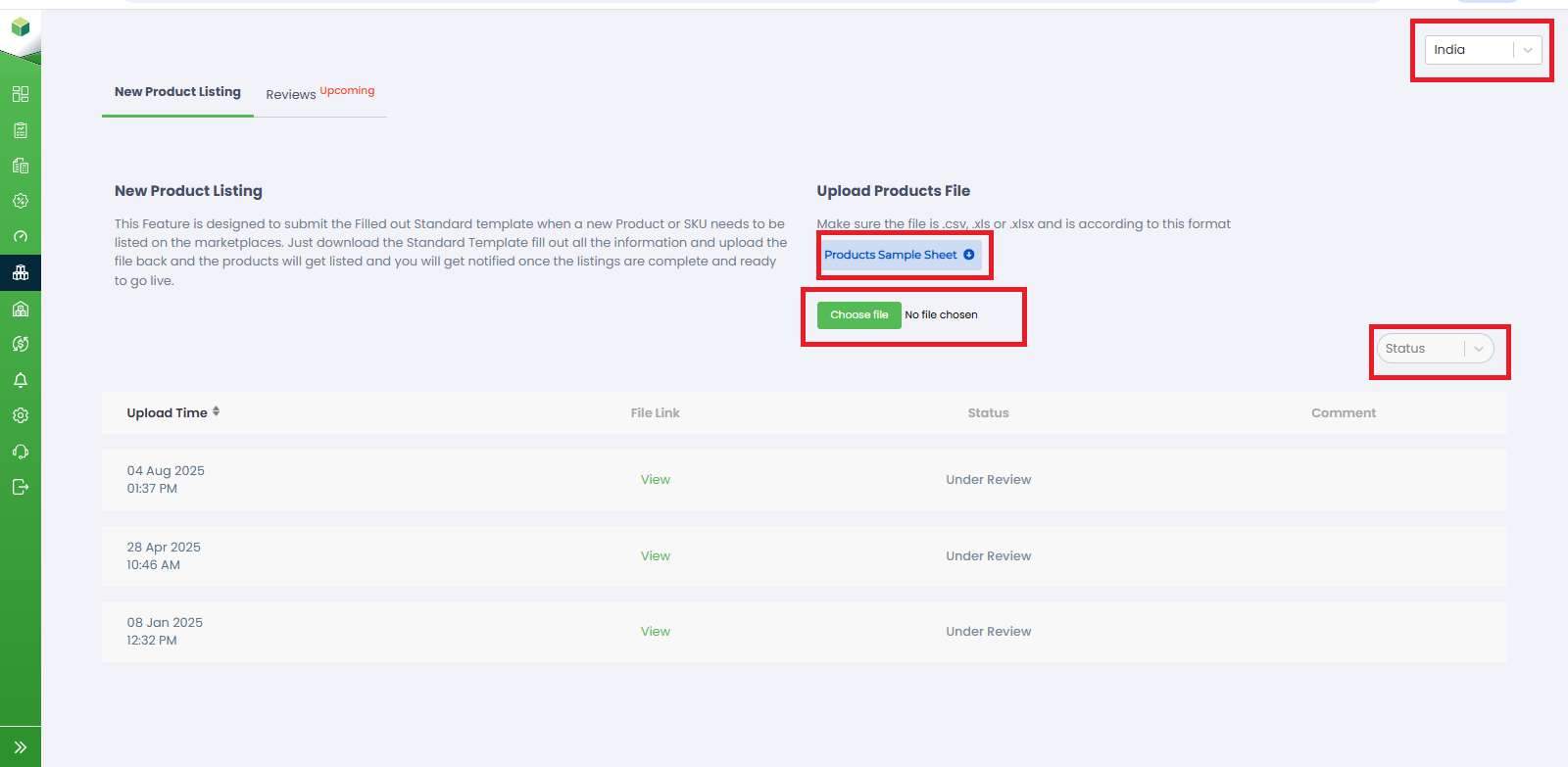
a. Upload Time : The Upload Time column displays the date and time when the product listing file was submitted.
b. File Link: The File Link column provides access to the uploaded product listing file. Clicking View allows users to review the submitted file.
c. Status: The Status column displays the current progress of the product listing request, helping users track whether the submission is under review, approved, or requires further action.
d. Comment: The Comment column displays feedback, remarks, or updates related to the submitted product listing file.