Get In Touch
To access this section, follow these steps:
- Log in to your account.
- Navigate to the sidebar on the left-hand side of the dashboard.
- Click on Helpdesk.
- Select the "Tickets "section.
The Tickets section allows users to raise support requests, track ongoing issues, and communicate with the support team. Users can monitor ticket progress, provide updates, and view responses until the issue is resolved.
Ticket List: The ticket table displays all submitted support requests and their details, enabling users to track and manage tickets efficiently.
The table contains the following information:
- Ticket Title – Displays the name of the support request.
- Category – Indicates the type of issue or request submitted.
- Date Created – Shows when the ticket was created.
- Last Updated – Displays the most recent update date.
- Due Date – Indicates the expected resolution date, if applicable.
- Assigned To – Shows the support team responsible for handling the ticket.
- Status – Displays the current status of the ticket.
- View – Opens the detailed ticket page.
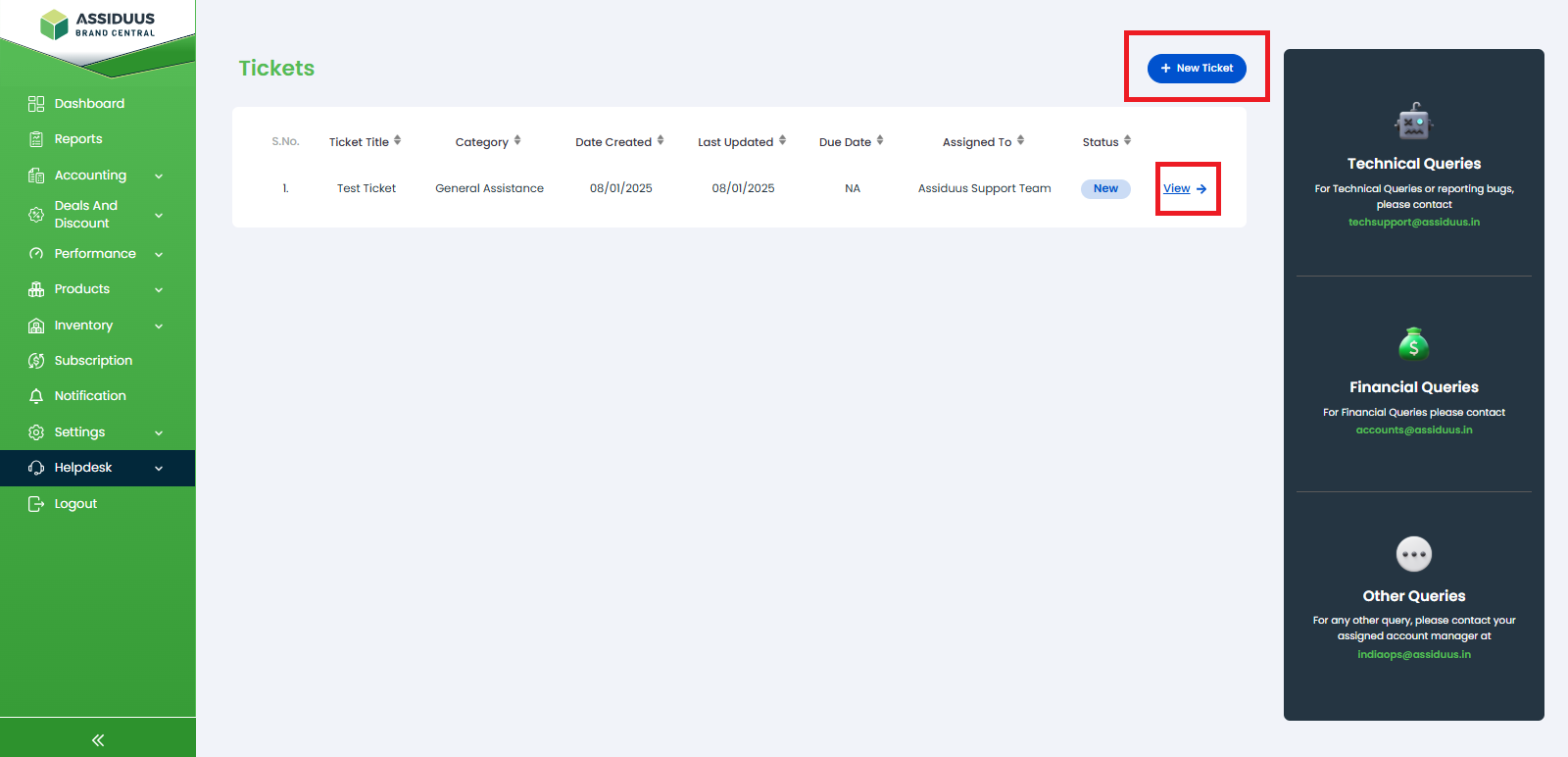
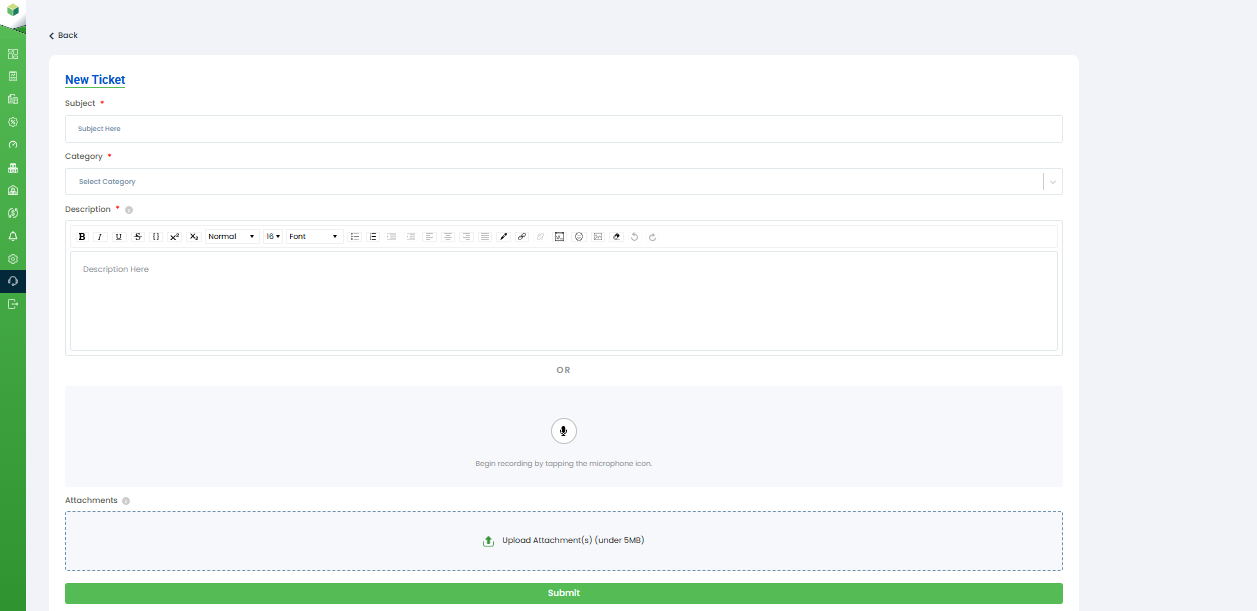
New Ticket: Click the + New Ticket button to create a new support request. This opens the ticket creation page where users can submit details about their issue or query.
The form includes:
- Subject – Enter a title for the ticket.
- Category – Select the appropriate support category from the dropdown.
- Description – Provide detailed information about the issue using the text editor.
- Voice Recording – Record and attach a voice message, if required.
- Attachments – Upload supporting files or screenshots (up to 5 MB).
- Submit – Submit the ticket to the support team for review and resolution.
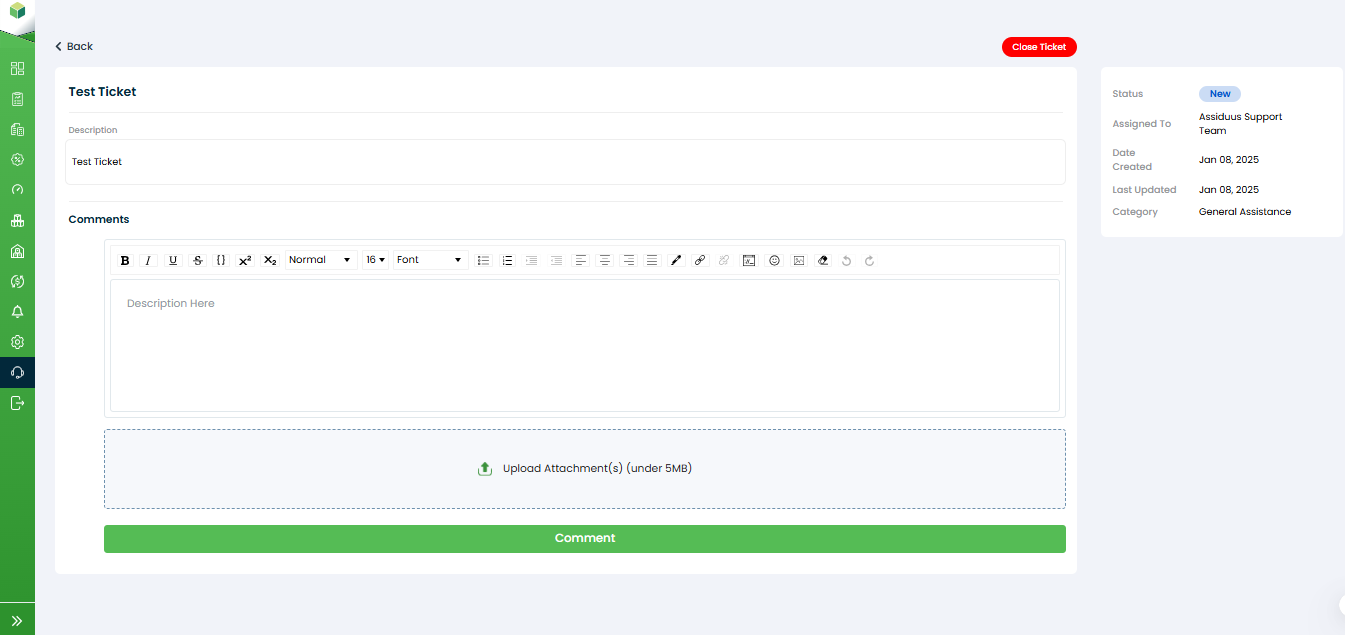
View Ticket: Clicking the View option opens the detailed ticket page, where users can review all information related to the selected ticket.
The page includes:
- Ticket Details – Displays the ticket title and description.
- Comments Section – Allows users to add comments, updates, or responses.
- Rich Text Editor – Provides formatting options for comments.
- Attachments – Upload supporting documents or screenshots (up to 5 MB).
- Ticket Information Panel – Displays ticket status, assigned team, category, creation date, and last updated date.
- Close Ticket – Allows users to close the ticket once the issue has been resolved.
- Comment Button – Submit comments and updates to the support team.
This page helps users communicate directly with the support team and track ticket progress.