
Accounting & Reconciliation
To access this section, follow these steps:
- Log in to your account.
- Navigate to the sidebar on the left-hand side of the dashboard.
- Look for the "Accounting" tab.
- Click on the "Accounting & Reconciliation" sub-section.
This section helps users manage monthly accounting records, download financial reports, upload credit notes, and reconcile transactions for accurate financial tracking.
1. Selecting Country: In the upper-right corner of the Accounting section, you'll find a country dropdown menu. Select your country or region to view accounting information applicable to your location and business operations.
2. Download Files: Select one or more records using the checkboxes and click the Download Files button. The selected accounting documents and reports will be downloaded for review and record-keeping purposes.
3. Search by Month: The Search by Month field allows users to quickly locate accounting records for a specific period. Simply enter the month name or year to filter and display the relevant accounting entries.
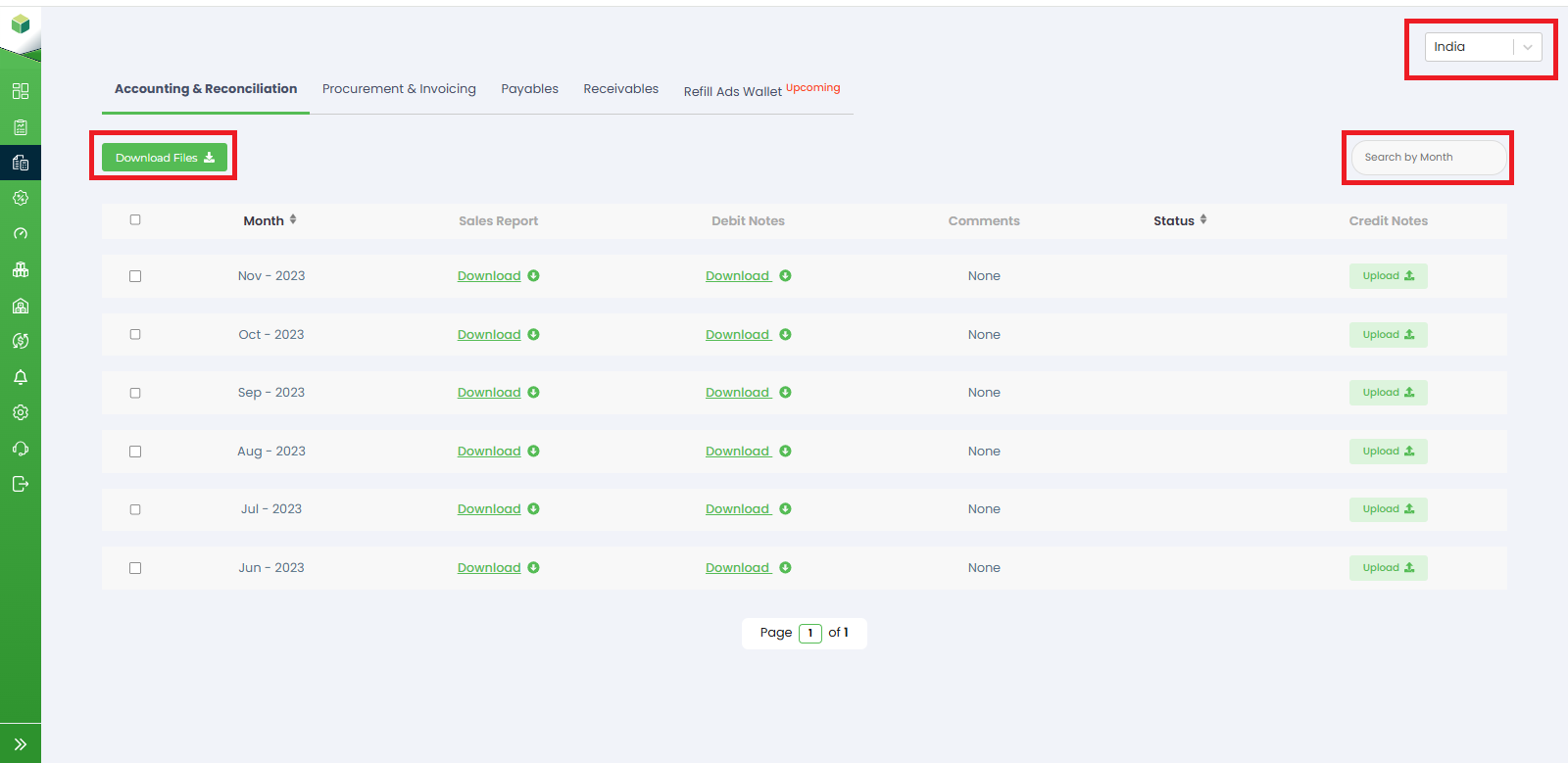
Month : The Month column displays the accounting period for which reports and documents are available. Users can view and manage records month-wise, making it easier to track financial activities over time.
Sales Report: Under the Sales Report column, users can download monthly sales reports by clicking the Download button. The report will provide you with valuable insights into your revenue, units sold, and other relevant metrics.
Debit Notes: The Debit Notes column allows users to download debit note documents associated with a particular month. Debit notes are used to record additional charges or adjustments.
Comments: The Comments column displays remarks or notes related to the accounting records for that month.
Status: The Status column indicates the current reconciliation status of the monthly records. This helps users track whether the accounting data has been reviewed, reconciled, approved, or requires further action.
Upload Credit Notes: Under the Credit Notes column, users can upload credit note documents by clicking the Upload button. Debit notes are used to record additional charges or adjustments .